In the previous post, there are directions for archiving your Google Classroom for future reference. While I went through this process with my previous classes, I looked around my classroom at all the student work piled up on shelves, overflowing from cabinets, and collecting dust on counter tops. I realized two things;
First, my classroom is a mess and needs some organization overhauling.
Second, I wondered if there was a better way to archive student work.
Then, my new fancy S4 caught my eye. I had a great idea, I could take video and describe the work to create a video archive, I also thought of becoming the photography I always wanted to be and take tons of pictures to make a digital archive. Then I decided to do what I do best, let me ask Google for ideas.
Sure enough, Google prevailed and I stumbled across Richard Bryne's blog all about this exact idea. The blog has great ideas for using iPad apps, the only thing is I don't have an iPad, nor do I want one. (This is a topic for a larger debate.) However, I think Skitch will help do what I want and let me use my S4 for more than playing music. Thanks to Mr. Bryne's blog, I found a great tool to aid me with de-cluttering my classroom while being able to continue hoarding student work. I'll just fill up yet another Dropbox account instead of over-stuffing my classroom. I'll become a digital hoarder rather than a physical hoarder...not sure what is better, but at least my classroom will be clear.

Sunday, January 18, 2015

Archive Classes in Google Classroom
Those of us who are secondary educators on a block schedule, are wrapping up the first semester...but, what do we do with all those Google Classrooms we made, and what do we do with the student work? Most teachers are "student work hoarders." Meaning that, we like to save everything we've done with a class, for various reasons. Sometimes, you have great student work you'd like to reference later, or sometimes you have an amazing assignment that you'd like to reuse, for whatever reason, we often save everything. Usually, to the point where all our file cabinets are overflowing. With the help of Google we are reducing our paper trail, yet we still want to save our work. So here is how to Archive your old Google Classroom page.
1) Log into Google Classroom
2) On your "Home" page, locate the classroom you want to archive.
3) Click the three dots in the right-hand corner of the classroom and select archive.

4) You'll see this "warning." Select "ARCHIVE"
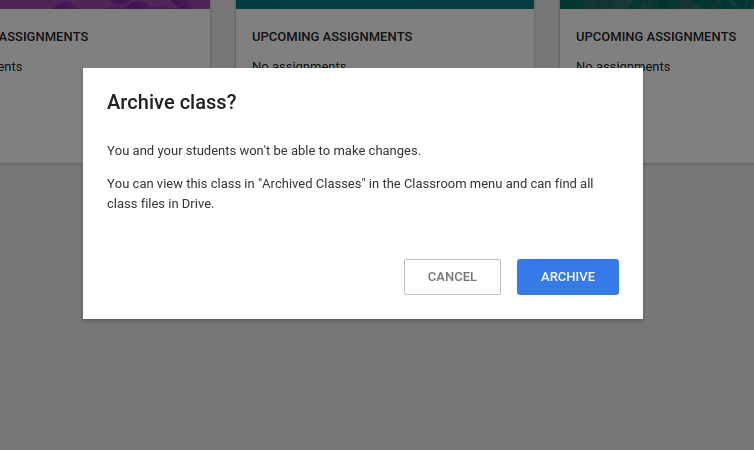
Once archived, you'll have a new menu option nestled under "home" called "Archived Classes."
You will still be able to see the classroom, and access student work, however, "you won't be able to make changes." (Hence the warning that pops up.)


Once you open the archived class, you can still view everything, and there are options to restore the classroom if you need to make changes.

1) Log into Google Classroom
2) On your "Home" page, locate the classroom you want to archive.
3) Click the three dots in the right-hand corner of the classroom and select archive.
4) You'll see this "warning." Select "ARCHIVE"
Once archived, you'll have a new menu option nestled under "home" called "Archived Classes."
You will still be able to see the classroom, and access student work, however, "you won't be able to make changes." (Hence the warning that pops up.)
Once you open the archived class, you can still view everything, and there are options to restore the classroom if you need to make changes.
Saturday, January 10, 2015
Search Ted Talks from Chromebook File Manager
Since my last post was a novel, here is a nice quick and easy tip.
You can peruse Ted Talks through the local file manager on your Chromebook with this extension. The catch is, your Chromebook needs to be running the beta or dev versions. Which, is fairly easy to switch over, even if they are managed by your technology department. If you're not sure what version you are running type this into the Omnibox in chrome; chrome://version. The top line will display the version and build. Here is a sample of mine...This sample is from my laptop running Linux Mint 17.1. However, my Chromebook is also running the dev. version. (the Chromebook is streaming Netflix at the moment.)

To change your chrome channel follow the directions from Google, listed here. If your Chromebook is managed by the technology department, just ask one of them to change it for you, there should be no reason to not at least update you to beta.
You can peruse Ted Talks through the local file manager on your Chromebook with this extension. The catch is, your Chromebook needs to be running the beta or dev versions. Which, is fairly easy to switch over, even if they are managed by your technology department. If you're not sure what version you are running type this into the Omnibox in chrome; chrome://version. The top line will display the version and build. Here is a sample of mine...This sample is from my laptop running Linux Mint 17.1. However, my Chromebook is also running the dev. version. (the Chromebook is streaming Netflix at the moment.)
To change your chrome channel follow the directions from Google, listed here. If your Chromebook is managed by the technology department, just ask one of them to change it for you, there should be no reason to not at least update you to beta.
Subscribe to:
Posts (Atom)